Today you will understand what happens inside a computer when you work, and set up a folder system for your studies that you will still use in your final year.
pioneers75 min
Computer fluency for study
How computers work, and files, at speed
Today you will understand what happens inside a computer when you work, and set up a folder system for your studies that you will still use in your final year.
Story3 min
Teacher block: The lost assignment
Atim is in her second year. She types her assignment for four hours on a laptop. Then the power goes off. The laptop has no battery left. When the power returns, her assignment is gone.
The next week she types another one. This time she presses one small shortcut every few minutes. When the power goes off again, she loses almost nothing.
What did she know that she did not know the first time?
Did you know?2 min
Did you know? The books of Timbuktu
Timbuktu, in Mali, has been a city of scholars for hundreds of years. Families there kept old handwritten books about science, law, medicine and the stars. In 2012, armed groups took over the city. Librarians and families packed many thousands of the books into boxes. In secret, they carried them south to the capital, Bamako. Some books were burned, but most were saved, because people moved them to a safe second place.
Saving is step one. Where is the second copy of your most important file?
Remember4 min
Teacher block: Recall from day 1
Answer on paper, then check with a neighbour.
Say two of the four team rules.
What is an algorithm?
Name four parts of a laptop.
What is the right way to shut a computer down?
Learn9 min
Teacher block: What a computer does, in four jobs
Every computer does four jobs, and so does a phone.
Input. Something goes in. You type, tap, speak, or take a photo.
Process. The computer works on it. It adds, compares, sorts and decides. The part that does this is the processor.
Storage. It keeps it for later.
Output. Something comes out. Words on the screen, sound, a printed page.
Think of mobile money. You type the amount (input). The system checks your balance (process). It records the payment (storage). Your phone shows “Sent” (output).
Diagram. Data goes from input to process to output. The process box also saves to storage and reads from storage.
Hardware and software. Hardware is the parts you can touch. Software is the instructions that tell the hardware what to do. A phone is hardware. Mobile money, WhatsApp and the calculator app are software: the same phone does different jobs because it runs different instructions.
The operating system is the main software. It is the manager. It starts the laptop, shows your files, and lets the programmes share the screen and the keyboard. Windows and macOS are operating systems. Android and iOS are the ones on phones.
Memory versus storage. These two are often mixed up.
Memory (RAM)
Storage (disk)
Like
The table where you spread your work while you do it
The cupboard where you keep it
Speed
Very fast
Slower
When the power goes off
Everything is lost
Everything stays
Size on a laptop, for example
8 GB
256 GB or more
When you type a document and have not saved, it lives only in memory. Saving copies it into storage. That is why Atim lost her work.
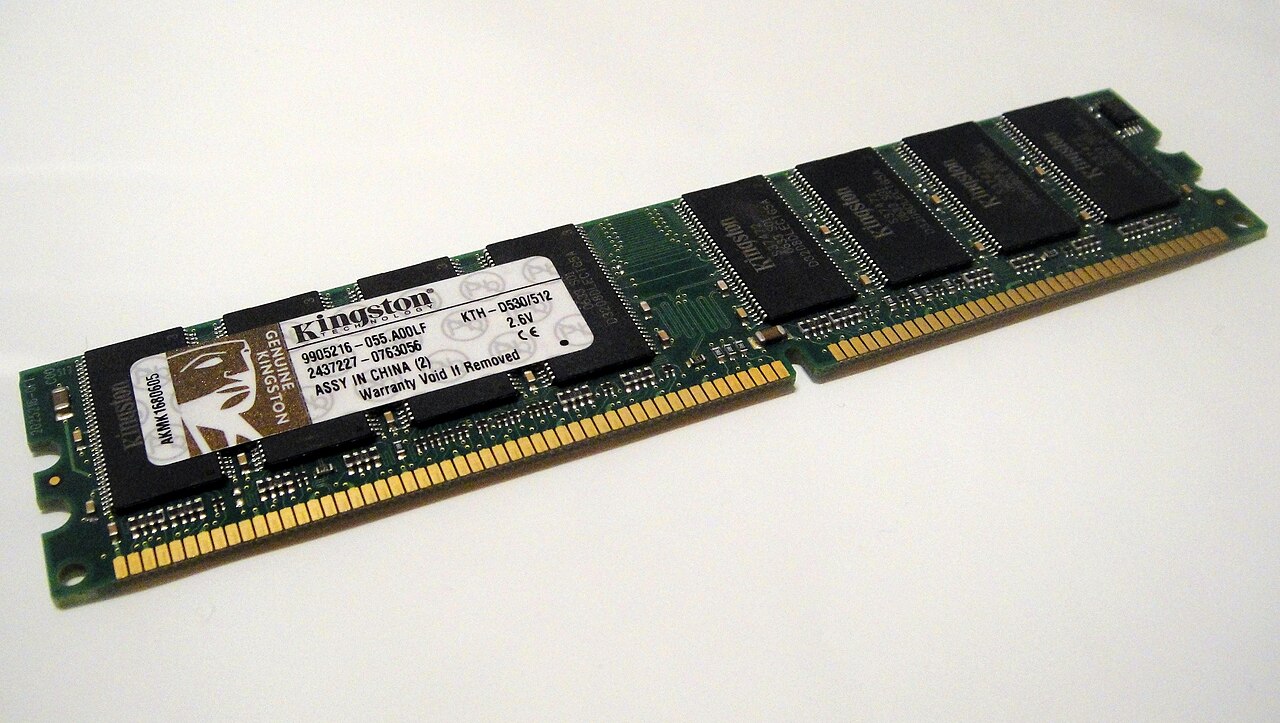
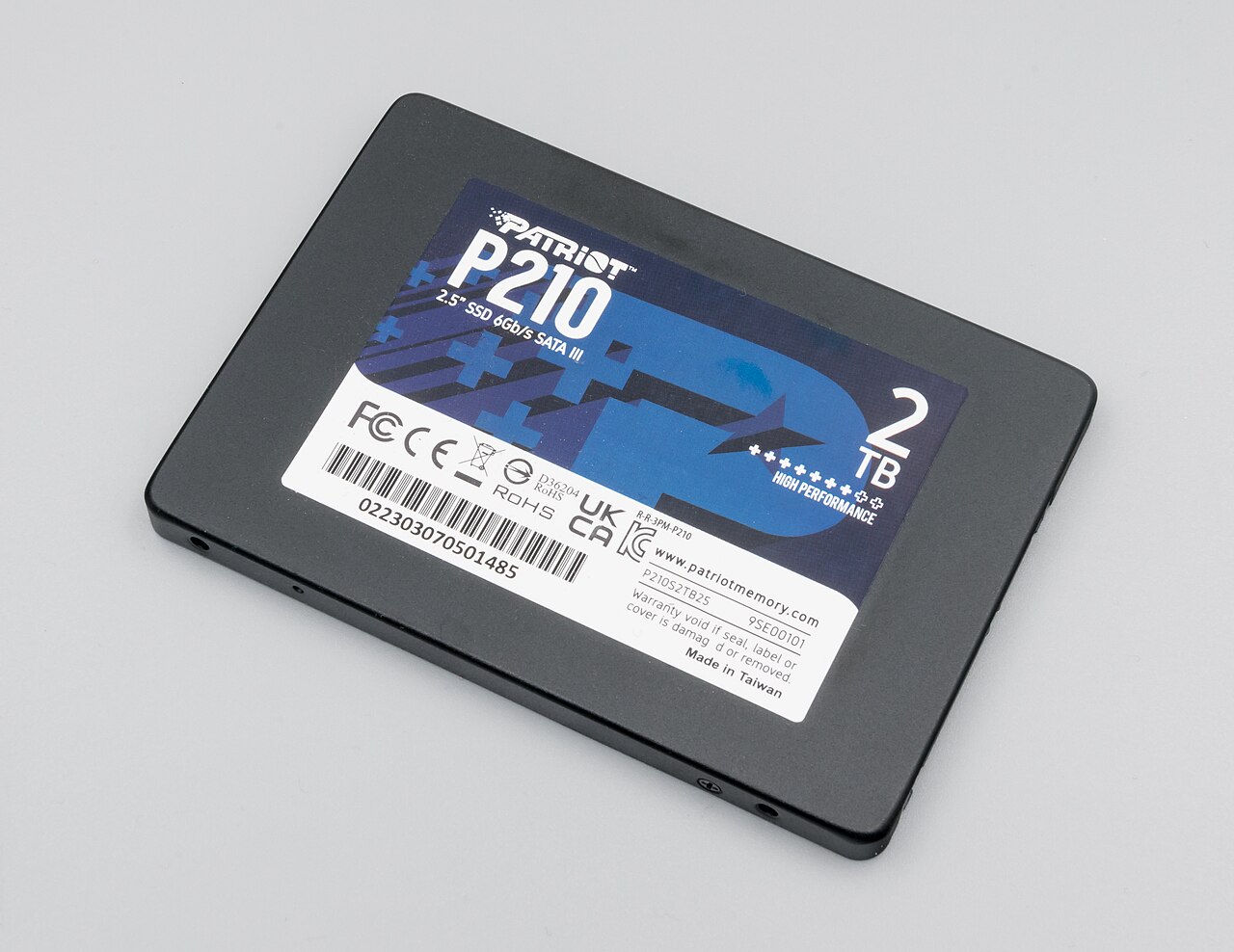
Memory (RAM): fast, and cleared when the power goes off.Photo: Matt Kieffer, CC BY-SA 2.0Storage: a solid state drive (SSD). It keeps files with no power. In thin laptops it is smaller and flatter.Photo: Jacek Halicki, CC BY-SA 4.0
Learn9 min
Teacher block: Files, folders and paths
A file is one piece of work with a name. A report, a photo, a song.
A folder is a container for files and for other folders. Like a box file with dividers in an office.
File types. The end of a file name, after the dot, is its extension. It tells the computer which programme should open it.
Extension
What it is
.docx
Document from Word. LibreOffice Writer opens it too
.odt
Document from LibreOffice Writer. Word opens it too
.pdf
A fixed document, good for sending and printing
.xlsx or .ods
A spreadsheet
.jpg or .png
A picture
.mp3 or .mp4
Sound, or video
.txt
Plain text with no formatting
A path is the address of a file. It lists the folders you pass through to reach it.
Windows uses backslashes. Mac uses forward slashes. Read a path from left to right, like directions to a house: district, then village, then compound.
Save and Save As.
Save (Ctrl+S on Windows, Cmd+S on Mac) puts your latest changes into the same file, in the same place, with the same name.
Save As (File menu, in both Word and Writer) makes a new copy. You choose a new name, a new folder, or a new type, such as PDF. The first time you save a new document, it works like Save As.
A folder structure for a university student. Make it once. Keep the same pattern for the whole degree.
Documents
  University
    Year 1
      Semester 1
        BIO 1101 Cell Biology
          Notes
          Assignments
          Readings
        ENG 1102 Communication Skills
          Notes
          Assignments
          Readings
      Semester 2
    Year 2
    Admin and CVs
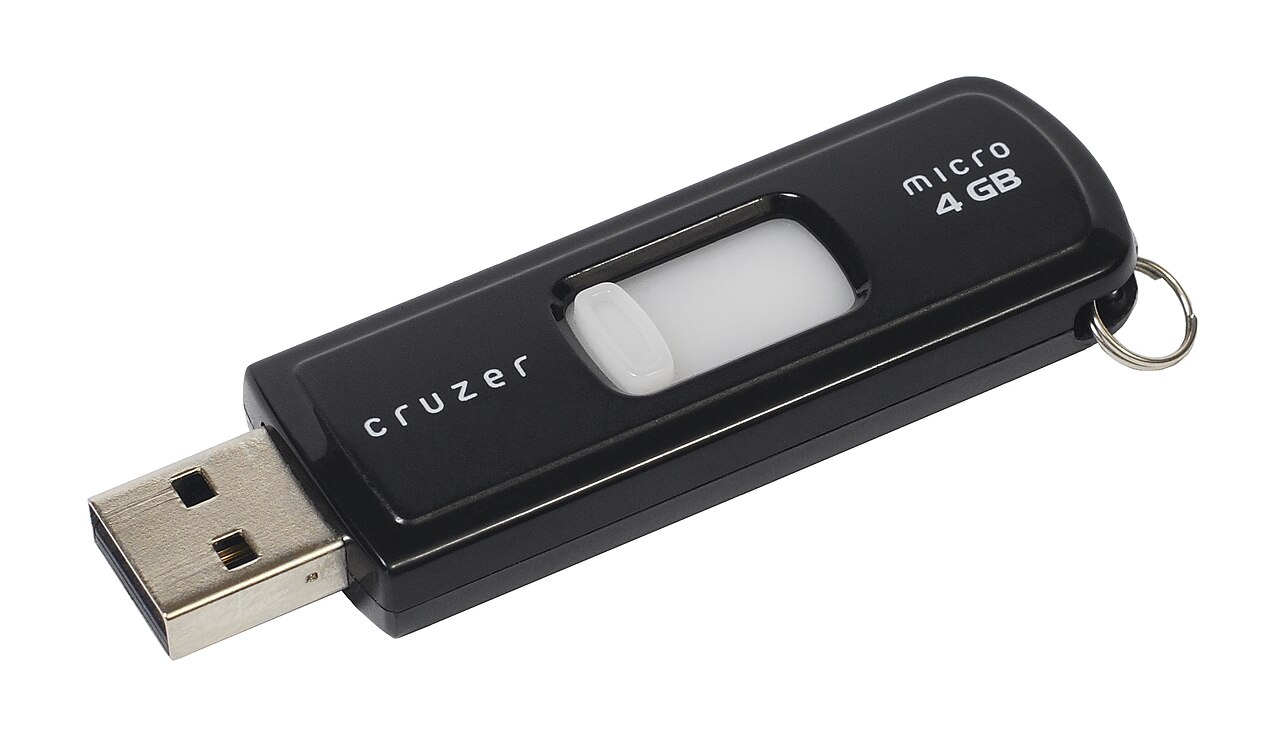
A flash disk. Use it to keep a second copy of your University folder.Photo: Evan-Amos, Public domain
Name files so that you can find them in 5 seconds. Good: Cell Biology lab report draft 2. Bad: New document (3). Add the date at the front if you keep many versions, for example 2026-11-27 Cell Biology lab report.
Learn6 min
Teacher block: Shortcuts that save hours
A shortcut is a press of two or three keys that does a job without the mouse. On Windows the main key is Ctrl. On a Mac it is Command (the key with the cloverleaf symbol, next to the space bar). Hold the first key, tap the second, then let go.
Job
Windows
Mac
Copy
Ctrl + C
Command + C
Cut
Ctrl + X
Command + X
Paste
Ctrl + V
Command + V
Undo
Ctrl + Z
Command + Z
Redo
Ctrl + Y
Command + Shift + Z
Save
Ctrl + S
Command + S
Select all
Ctrl + A
Command + A
Find
Ctrl + F
Command + F
Switch window or programme
Alt + Tab
Command + Tab
Copy leaves the original and takes a duplicate. Cut takes the original away to move it. Paste puts down whatever you copied or cut. Undo takes back your last mistake. Use it freely: a mistake is a bug, and undo is the fix.
On the computer5 min
Teacher block: Write it before you click
You will do this on the laptop at 2:00. First, write it on paper.
Write the steps, for the laptop you will use, to make the folder path Documents, University, Year 1, Semester 1.
Write the full path of a file called Practice shortcut in your Semester 1 folder.
Write the keys for: select all, copy, paste, undo, save, find.
Swap papers with your partner. Check each step against the board.
On the computer3 min
Teacher block: Quick check
Computer basicsQuestion 1 of 4
You have typed half a page and not saved. The power goes off. Where was your page?
Wan Bene moment4 min
Teacher block: Explain it to an Explorer
You will mentor an Explorer tomorrow. Practise now.
In 30 seconds, explain memory and storage in plain words to your partner. Use an example from Gulu. Your partner must be able to repeat it back.
On the computer9 min
Laptop block: Build your real folder structure
No teacher is with you. Follow the numbers and your paper from the teacher block. Work in pairs. Swap driver and navigator after about 5 minutes.
First fill in the Folder plan on paper (below), if you have not yet.
Open your file manager. Windows: File Explorer (yellow folder on the taskbar, or Windows key + E). Mac: Finder (blue face in the Dock).
Open Documents. Windows: click Documents on the left. Mac: click Documents in the sidebar, or press Shift + Command + O.
If you have no University folder yet, make one. Windows: right-click an empty space, New, Folder, or press Ctrl + Shift + N. Mac: File, New Folder, or press Shift + Command + N.
Make Year 1 or Year 2 inside it, whichever you are in now. Then make your current Semester folder.
Make one folder for each of your course units this semester. Use the code and the name, for example HST 1101 Ugandan History.
Inside one course unit, make three folders: Notes, Assignments, Readings.
Check the path. Windows: click in the address bar and read it. Mac: View, Show Path Bar. Read it aloud to your partner.
Make a second folder at the top level called Admin and CVs. You will use it in a few days.
Partner check: the navigator reads the path aloud and compares it with the paper from the teacher block.
Your folders should look like this example. Click a folder to open it, and click a file to see its path. Your course units will have their own names.
Atim's University folder (an example)
Folder planName:
Fill this in before you touch the laptop.
My current year:
My semester:
My course units this semester (code and name):
Three folders inside each course unit: , ,
A file name I will use for my next assignment:
Where I will keep a backup (flash disk, a second laptop, a trusted email address):
On the computer6 min
Laptop block: Practise the shortcuts
Open Word, or LibreOffice Writer, which is free. Type three sentences about your course.
Select all (Ctrl + A or Command + A). Copy it (Ctrl + C or Command + C). Click at the end and paste it twice (Ctrl + V or Command + V).
Undo twice (Ctrl + Z or Command + Z).
Cut one sentence (Ctrl + X or Command + X) and paste it at the start of the page.
Save it into your course unit Notes folder with the name Shortcut practice. Use Ctrl + S or Command + S. If a window opens, choose the folder and type the name, then click Save.
Change one word. Now use File, Save As and give the name Shortcut practice 2. Open the folder: you now have two files. That is the difference between Save and Save As.
Open a second programme, such as the file manager. Switch back and forth with Alt + Tab or Command + Tab. Do it five times without looking at the table.
Press Ctrl + F or Command + F. Find one word that appears twice.
Check yourself without the table. Match each job to its keys on Windows. On the Mac, the keys are the same with Command in place of Ctrl.
Match the job to the shortcut0 of 6 matched
Click one on the left, then its partner on the right.
Challenge5 min
Laptop block: Challenges
Bronze
Use the six shortcuts on one page without the mouse for the keys: copy, cut, paste, undo, save, select all. Write down one that you did not know before today.
Silver
Find the extension of five different files on your laptop. Turn on “show file extensions” first. Windows: File Explorer, View, Show, File name extensions. Mac: Finder, Settings, Advanced, Show all filename extensions. List each file name and its type.
Gold
Save your Shortcut practice file a second time with Save As, as a PDF. In Writer: File, Export As, Export as PDF. In Word: File, Save As, and choose PDF as the file type. Write down: what is different between the .docx or .odt file and the PDF? Try to edit both.
Exit question3 min
Laptop block: Exit question
Write your answer on paper, then say one sentence aloud to your partner.
You open a file you saved last week. Where was it kept while you were away, in memory or in storage?
Say one habit you will change from today, for example “I will make a folder for each course unit”.
Home mission2 min
Laptop block: Home mission
Paper (no device). Draw the folder tree for your whole degree on one sheet. Put a star on the folder where you would keep your next assignment. Write one good file name for it.
Phone (if you have one free). Open the file or Files app on your phone. Find where your photos and downloaded documents are. Name one folder you could make so that course documents are not mixed with photos.
Wan Bene moment5 min
Laptop block: Prepare tomorrow's mentoring
Tomorrow the Explorers are on day 3. They will play “1. Move” and “2. Click” in the Mouse trainer, then open and close a program: the Calculator. On the Lenovo it is in the Start menu. On the MacBook it is in the Dock. The pairs change laptops, and the pair at the Lenovo switches it on and shuts it down. The MacBook stays on.
Write on a sheet:
The first thing you will say. For example: “Let us see the pointer. Put one finger on the touchpad.”
Two words you will use in plain English. For example “click” and “close”.
The question you will ask instead of taking the mouse: “What do you see change on the screen when you press?”
Practise with your partner. One of you is the Explorer, the other is the mentor. The mentor sits with hands behind the back.