Today you will make a folder in your own name, save a file inside it, and find it again.
builders120 min
How computers work
Files and folders
Today you will make a folder in your own name, save a file inside it, and find it again.
Story4 min
Teacher block: Ocen cannot find the photo
Ocen played football on Saturday. A friend took a great photo of his goal and sent it to the school laptop.
On Monday, the teacher says, “Ocen, show us the photo.”
Ocen opens the laptop. He finds a long list: IMG_0034, New file, New file (2), photo, photo final, final final. He opens one. It is a picture of a goat. He opens another. It is a maths note.
He looks for ten minutes. The class laughs. Ocen goes quiet.
Akello says:
Akello says: Your photos have no home, and no names. That is why you cannot find them.
What would you do so Ocen can find his goal photo in two seconds?
Did you know?2 min
Did you know? Clay tablets
About 5,000 years ago, people in Mesopotamia, in today’s Iraq, pressed marks into wet clay. Then they let it dry. These clay tablets kept records, such as how much grain was in a store. Many tablets were kept together in rooms, so a record could be found again. Thousands of tablets have survived. Experts can read them today. Records that are kept well can last for thousands of years.
What would a room full of tablets need, so you could find one in two seconds?
Remember5 min
Teacher block: Recall from yesterday
Think, then show with your fingers.
Which of the four jobs keeps things for later? 1. Input 2. Store 3. Output
You type a story and the power goes off. You did not save. What happened? 1. Kept in storage 2. Lost from memory 3. Moved to the screen
A keyboard is: 1. Input 2. Output 3. Storage
Say one thing from your home mission: what machine did you draw, and what was its output?
Learn15 min
Teacher block: Files, folders and paths
A file is one thing a computer keeps, with a name. A photo, a song, a story you typed.
A folder is a container that holds files, and other folders. Like a school bag holds exercise books, and each exercise book holds pages.
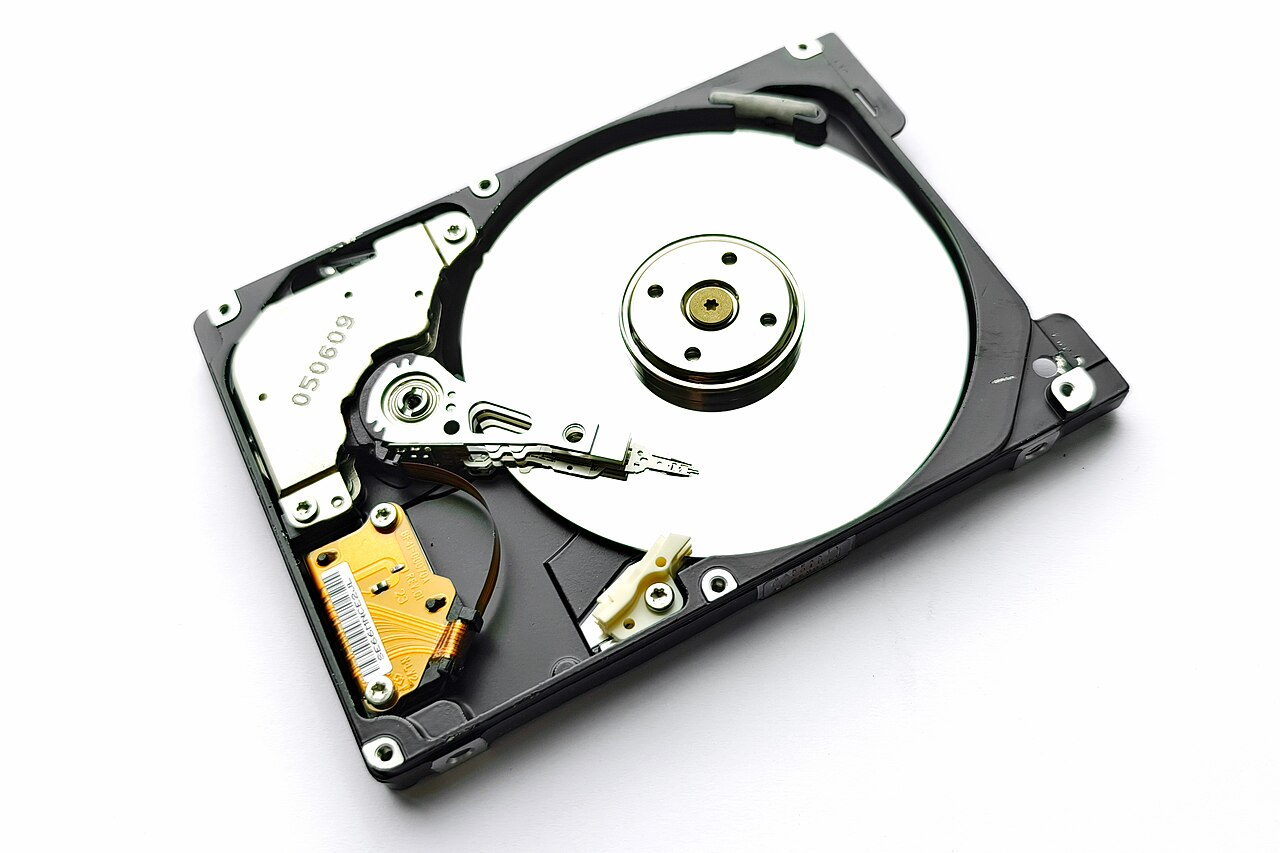
Files and folders live in the computer’s storage.
Inside a hard disk: a shiny disc and a reading arm. Many laptops now use an SSD instead, with no moving parts.Photo: Mk2010, CC BY 4.0
Think of the head teacher’s office. The filing cabinet has drawers. Each drawer has a label. Inside are papers. The drawers are folders. The papers are files.
A name has two parts.goal-photo.jpg. The part before the dot is the name: goal-photo. The part after the dot is the type: jpg. The type tells the computer what kind of thing it is, and which program can open it.
Ending
What it is
.txt
Plain text. Only letters and numbers, like a note.
.jpg
A photo or picture.
.mp3
A song or sound.
.pdf
A page that looks the same on every computer.
A good name
maths-week1.txt, goal-saturday.jpg, about-me.txt
A bad name
New file (2).txt, IMG_0034.jpg, final final 2.txt
A path is the directions to a file, like directions to a house: “From the Gulu clock tower, go to the market, then the third shop on the left.” On a computer: from the Documents folder, go into School, then Maths, then find the file.
Ocen's Documents folder
On Windows we write: Documents\School\Maths\week1.txt. On Mac: Documents/School/Maths/week1.txt. (The full path starts higher up, at your own user folder. We start at Documents to keep it short.)
No computer9 min
Teacher block: Be the filing cabinet
Your teacher has 12 slips with file names, and folder labels on the floor.
Your job: put each slip in the folder where it belongs. Argue for your choice.
Guess: how many folders will we need?
No computer10 min
Teacher block: Paper exercise and check
Design a folder treeName:
1. Ocen has these 8 files. Draw a folder tree for him. Use at least 3 folders, and one folder inside another.
3. What is the type of each file, and what does it hold?
File
Type
It holds
class-photo.jpg
favourite-song.mp3
my-plan.txt
4. Make the name better: New Document (3).txt, which holds your maths homework for week 2.
CheckQuestion 1 of 4
What is a folder?
On the computer35 min
Laptop block: Task card, my folder
With no teacher. Read the card. Follow it. Ask your partner first.
Your pair: one driver and one navigator. Swap every 10 minutes. If there are 3 of you, one is the timekeeper and joins a pair as a second navigator. Both of you will make your own folder, so the driver makes theirs first, and then you swap.
Our rule: Do not delete or change another person’s folder.
Round 1 (10 minutes): make your folder
Open your Documents folder.
If the Lenovo is off, switch it on first: one short press, then wait.
Windows (Lenovo): click the yellow folder icon at the bottom of the screen. This is File Explorer. On the left, click Documents.
Mac: click the blue face icon at the bottom (the Finder). On the left, click Documents.
Make a new folder.
Windows: right-click an empty space. Click New, then Folder.
Mac: press Control and click in an empty space. Click New Folder.
Type your first name (for example: akello) and press Enter (Mac: Return). Use small letters and no spaces.
Predict first: when you double click it, what will you see? Then double click your folder to open it. It is empty.
Make three folders inside it, the same way. Name them: school, football-or-hobby (choose your own word), projects.
When Round 2 and Round 3 are done, your folder looks like this. Click a folder to open it.
Akello's folder at the end of today
Swap! The new driver makes their own folder with their own name.
Round 2 (10 minutes): make and save a file
Open the text editor.
Windows: Start, type Notepad, press Enter.
Mac: Command and Space, type TextEdit, press Return. If a box opens, click New Document. Click Format in the top menu, then Make Plain Text.
Type three lines: your name, your school, and one thing you like.
Save it.
Windows: press Ctrl and S.
Mac: press Command and S.
A box opens. Look at where it will save. Click your Documents, then your folder. On a Mac, if the box is small, click the small arrow next to the name to make it bigger.
For the file name, type about-me. Windows adds .txt for you. On Mac, check that the ending is .txt. Click Save.
Close the text editor. Look inside your folder with File Explorer or Finder. Do you see about-me.txt?
Swap!
Round 3 (10 minutes): rename, move, find
Rename. Change about-me.txt to all-about-me.txt. Keep the ending .txt.
Windows: click the file once. Press F2. Type the new name. Press Enter. If F2 changes the sound instead, right-click the file and choose Rename.
Mac: click the file once. Press Return. Type the new name. Press Return.
Move. Drag all-about-me.txt into your projects folder. Hold the left button on the file name, move to the folder, and let go. Open projects to check.
Find it again. Go back to Documents. Click the search box at the top right of the window. Type all-about. Wait. The file appears. Double click it. It opens in the text editor.
Say the path aloud. For example: Documents, then your name, then projects, then all-about-me.txt.
Stuck? Before you ask anyone, try three things:
Read the step again, slowly, out loud.
Ask your partner: “What do you see on the screen? What did you click last?”
Try another way. For example, use the File menu in the top bar, or right-click the file and look for Rename. If it still fails, write the problem on paper and carry on.
Last 5 minutes: typing practice. Driver: in the Key finder, do 2. All letters and 3. Numbers. Navigator: say “Look at the screen” if the eyes go down. Then do 4. My name. Leave both laptops on at the end. The Pioneers use them next.
Key finder
Key finder
Key finder
Challenge10 min
Laptop block: Challenges
Choose one level. Start with bronze.
Bronze
Check that you have a folder with your name, a subfolder, and all-about-me.txt saved in it. Close everything. Then find the file again using only the search box.
Silver
Make a second text file called my-goals.txt with three goals. Save it in your school folder. Then move it to projects. Write the new path on paper.
Gold
Make a path four folders deep inside your folder, for example school, then english, then term-1, then essays. Save a file in the deepest one. Write the path from Documents on paper. Hand it to your partner, who must find the file using only your paper.
Wan Bene moment10 min
Say it out loud: where is it?
Stand up and talk for one minute.
Tell your team: Why is a good name and a good folder important? Use an example from your life.
Use this shape: One sentence answer. One example.One question for us.
Exit question10 min
Exit question
Show with your fingers.
Your file is Documents/School/Maths/week1.txt. Which folder holds the file?
Documents
Maths
week1
Then say one sentence: “Today I learned that …”
Tick your skills.
Home mission10 min
Home mission
Paper (everyone). Draw a folder tree for your own life: school, family, hobby, and something you want to build. At least three folders, and one folder inside another. Write three good file names that could go in it. Bring it tomorrow.
Phone (only if a family phone is free, and you have asked). Open the Files app, or the Gallery. Find where your phone keeps photos. How many folders can you find? What is the name of one? Tell someone at home what a folder is.