Today you will show what you can do without help, tidy your workspace, and tell us what you will build.
builders120 min
How computers work
Build and Show: my workspace
Today you will show what you can do without help, tidy your workspace, and tell us what you will build.
Story3 min
Teacher block: Ocen finds his goal
It is Friday. Akello says to Ocen:
Akello says: On Wednesday you could not find your goal photo for ten minutes. Show me now.
Ocen opens his folder. He opens football. He sees goal-saturday.jpg. Two seconds.
Akello laughs. “How did you do it?”
Ocen says: I gave it a name and a home. And I know the four jobs. And I know a computer does only what it is told. Now I want to tell it more.
What can you do today that you could not do on Monday?
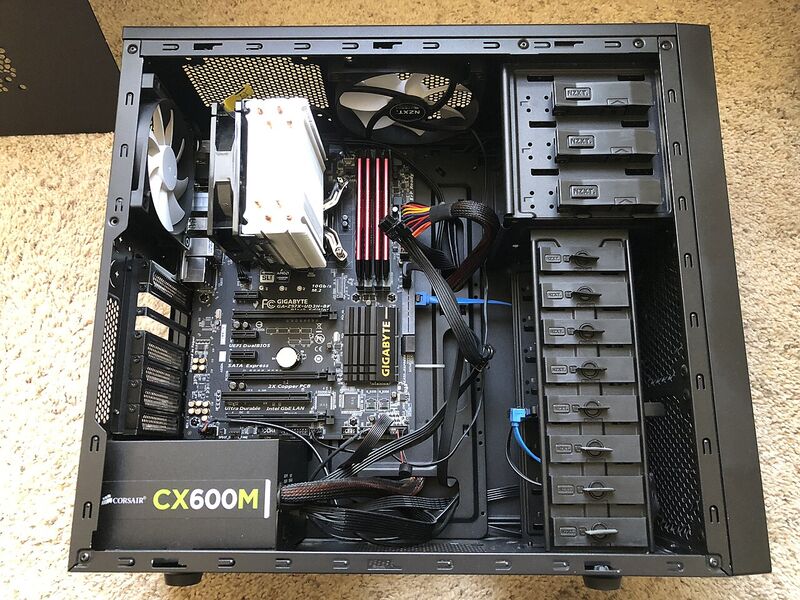
Inside a desktop computer. The red sticks are memory (RAM). The processor is under the big fan. The box at the bottom gives power.Photo: FASTILY, CC BY-SA 4.0
Did you know?2 min
Did you know? Katherine Johnson checked the numbers
Katherine Johnson was a mathematician at NASA in the USA. Before electronic computers, people like her did the sums for flights by hand. They were called computers. In 1962, electronic computers worked out the path for astronaut John Glenn to circle the Earth. Glenn asked that Katherine check the machine’s numbers by hand first. He trusted her careful checking. A person checked the machine.
Why is it good to check your own work before you show it?
Remember4 min
Teacher block: Recall from Day 1
Warm up your brain. Show with your fingers.
Warm upQuestion 1 of 4
Your friend is stuck on the laptop. What is the team rule?
No computer14 min
Teacher block: Checkpoint on paper
Work alone. Quietly. Write short answers. If you do not know, write what you think.
Checkpoint: how computers workName:
Name:
1. Write the four jobs of a computer, in order.
2. Write input or output. keyboard: speaker: microphone: screen:
3. Which forgets when the power goes: memory or storage?
4. In one sentence: what is the difference between a file and a folder?
5. The file is called song.mp3. What is the type, and what does it hold?
6. The path is Documents/School/Maths/week1.txt. Which folder holds the file? How many folders is it inside, counting from Documents?
7. Write one good name for a text file with your English essay.
8. Write the three properties of a good algorithm.
9. Trace it. The steps are: 1. Read a, b, c. 2. Set biggest to a. 3. If b is greater than biggest, set biggest to b. 4. If c is greater than biggest, set biggest to c. 5. Say biggest.
With a = 4, b = 9, c = 6, what does it say?
10. Find the bug. 1. Set count to 1. 2. Repeat: say count, then add 1 to count. 3. Say “Done”. What is wrong?
Learn5 min
Teacher block: Mark it together
Take a different coloured pencil. Mark your own paper while we read the answers. Put a tick for each answer that is right.
Where you are wrong, write the right answer next to it.
No computer17 min
Teacher block: My plan, on paper
Write your plan on paper first. After the break you type it on the laptop.
My plan, draft on paperName:
My name:
1. Three things I can do on a computer now:
2. What I will build by the end of the program (a game, a story with pictures, a website for a shop, an app that helps at the clinic or school, or your own idea):
3. Who is it for? Name a real person or place:
4. My first step this week:
5. Draw your folder tree. Put a star on the folder where this plan will go.
On the computer15 min
Check stations: practical check, one at a time
Each of you does the practical check alone, on the Lenovo. Your teacher watches and writes. He does not help. Wait for your name on the board. While you wait, practise your talk on paper.
The practical check. Do these 6 things alone:
Switch on the laptop. Wait for the screen. Sign in.
Open Documents. Make a new folder named check- and your name, for example check-akello.
Open the text editor. Type your name and one sentence about your week.
Save it as check.txt inside your check folder.
Close the text editor. Find the file again using the search box. Open it.
Shut down the right way.
Practical check record (Builders)Name:
Date:
Write A (alone), H (with a hint), or N (not yet).
Step
Learner 1
Learner 2
Learner 3
Learner 4
Name
1. Switch on and sign in
2. Make the folder, named correctly, in Documents
3. Type in the editor
4. Save as check.txt in the check folder
5. Find again with search and open
6. Shut down the right way
Notes for week 2:
On the computer20 min
Laptop block: Task card, my workspace
With no teacher. Read the card. Follow it. Ask your partner first.
You start when your practical check is done and a laptop is free. The Lenovo is free after the last Builder check. The MacBook is free after the Pioneers’ checks.
Your pair: one driver and one navigator. Swap at the half. Rule: do not change another person’s folder.
Your job: tidy your folder, and type your plan. At 2:00 you show your folder and read your plan.
Part 1: tidy your folder (about 5 minutes each)
If the laptop is off, switch it on. Open your folder.
Windows: File Explorer, Documents, your name folder.
Mac: Finder, Documents, your name folder.
Ask: does every file have a clear name? Is every file in the right folder?
Rename any file with a bad name (Windows: click it, press F2, or right-click and choose Rename. Mac: click it, press Return).
Move any file that is in the wrong place (drag it into the right folder).
A tidy folder can look like this. Yours may have other names. Each file has one clear home.
A tidy folder
Swap. The other learner tidies their own folder.
Part 2: type your plan (about 5 minutes each)
Open the text editor.
Windows: Start, type Notepad, Enter.
Mac: Command and Space, type TextEdit, Return. Then Format, Make Plain Text.
Type this, and fill each line from your paper plan:
About me and what I will buildMy name:My school and class:Three things I can do on a computer now:1.2.3.What I will build by the end of the program:Who it is for:My first step this week:
Save it in your name folder (not in a subfolder). Name it about-me-and-my-plan.txt.
Close it. Open it again from your folder. Check that it opens.
Swap. The other learner types their own plan.
At 1:58: save everything. Close all programs. Wipe the keys. Leave the laptops on for the Show.
Stuck? Before you ask anyone, try three things:
Read the step again, slowly, out loud.
Ask your partner: “What do you see? What did we do last?”
Use the search box to find your file, or look at your paper tree. If it still fails, write the problem on paper and carry on.
Challenge10 min
Laptop block: Challenges
Choose one level, if you have time on a laptop. If not, do it on paper.
Bronze
Read your document aloud. Check every line is filled in. Fix any spelling bugs. Save it.
Silver
Add a section at the end: A bug I found and fixed this week. Write what it was, and how you fixed it. Save it.
Gold
Add a map of your folders at the top of your document, written as text. For example: Documents, then akello, then school, then maths. Then write three clear steps (an algorithm) for how a new learner could find your plan, starting from File Explorer or Finder. Another learner tries them.
Wan Bene moment20 min
Build and Show, everyone together
Build and Show. Each of you speaks for one minute.
Say your name and the path to your folder.
Show your folder on the big screen. Open a file.
Read your plan: what you will build, and who it is for.
When we listen, we give two things: One thing that was clear.One question.
Say: “One thing that was clear to me was … . My question is … .”
Exit question5 min
Exit question
Show with your fingers.
You made a file and did not save it. The laptop shuts down by itself. Where is your file?
In storage
Gone, because it was only in memory
In the folder
Then say one sentence: “This week I learned that …”
Tick your five skills on your passport.
Home mission5 min
Home mission
Paper (everyone). Ask three people at home or in your village: “What is one job that takes too long or goes wrong?” Write what they say. Choose one. Write the steps a computer could follow to help. Bring it on Monday.
Phone (only if a family phone is free, and you have asked). Find one app on the phone. Say what is its input, its process, its store and its output. Tell someone at home.