Today you will switch the laptop on and off the right way, name its parts, and move the pointer.
explorers90 min
Meet the computer
Parts, power, and care
Today you will switch the laptop on and off the right way, name its parts, and move the pointer.
Story3 min
Laptop block: Ocen and the charger
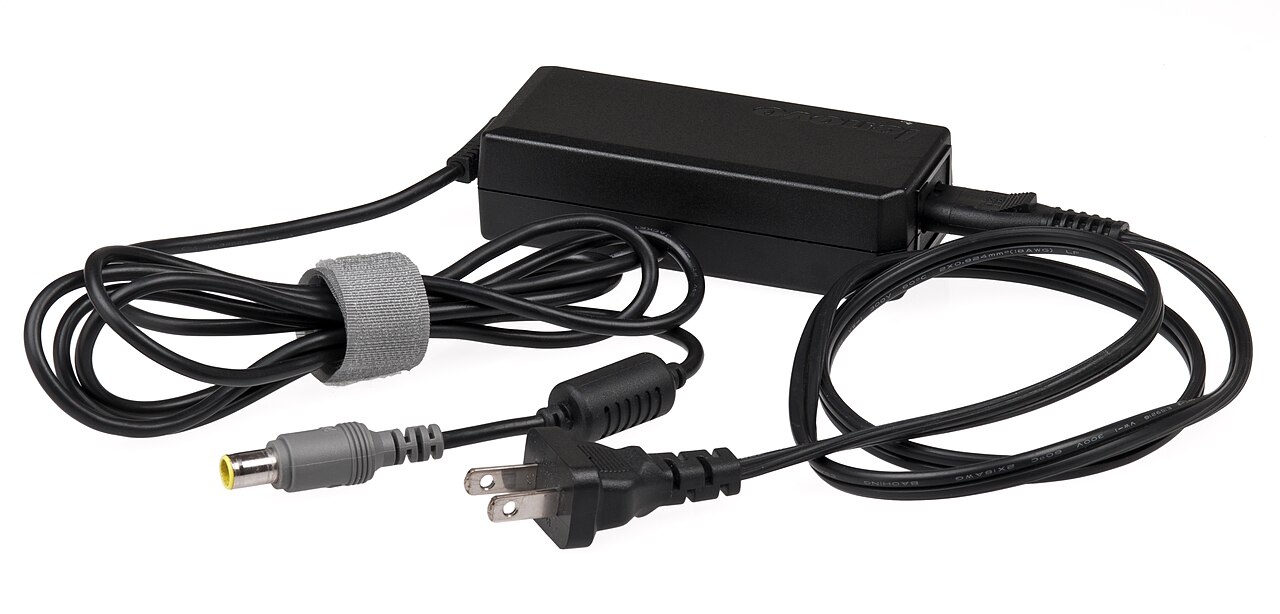
Ocen’s uncle has a laptop. The charger is plugged in at the wall.
Ocen wants to move the laptop. He pulls the charger by the wire.
Akello says: Stop! Hold the plug, not the wire.
Ocen says: Why?
Akello says: The wire is thin inside. If it breaks, the laptop cannot drink power.
A laptop charger. Hold the plug, not the wire.Photo: Evan-Amos, Public domain
Did you know?2 min
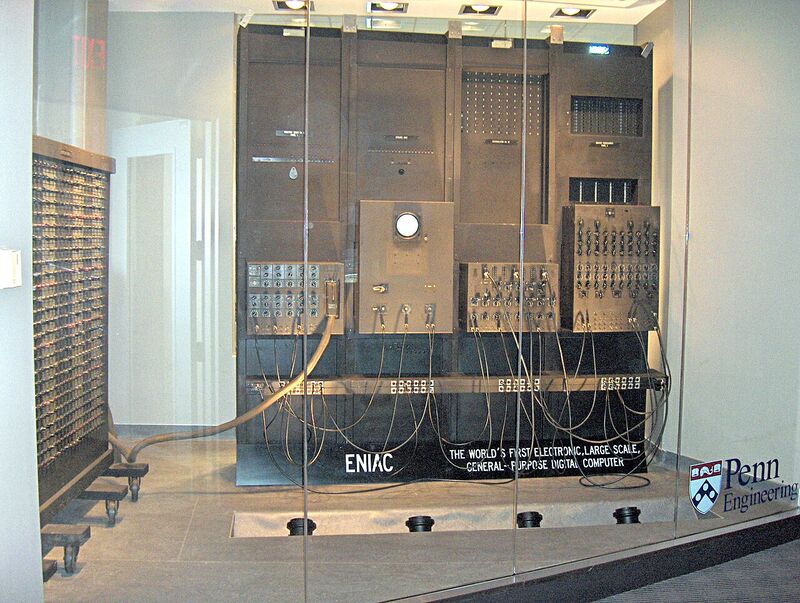
Did you know? A computer as big as a room
Look at the photo. It shows part of ENIAC. It was one of the first electronic computers. It was built in the 1940s. It was as big as a room. Today your phone can do far more sums than it could. Computers grew small. They keep changing.
ENIAC, one of the first computers, as big as a roomPhoto: The original uploader was TexasDex at English Wikipedia., CC BY-SA 3.0
What is in your hand today that is a small computer?
Remember4 min
Laptop block: Remember day 1
Answer with your pair. Whisper to each other first.
What are our four team rules? Say two.
What is a list of clear steps in order called?
What does the driver do? What does the navigator do?
Name one part of the laptop.
Learn8 min
Laptop block: Switch on the right way
Switch on.
Open the lid with two hands.
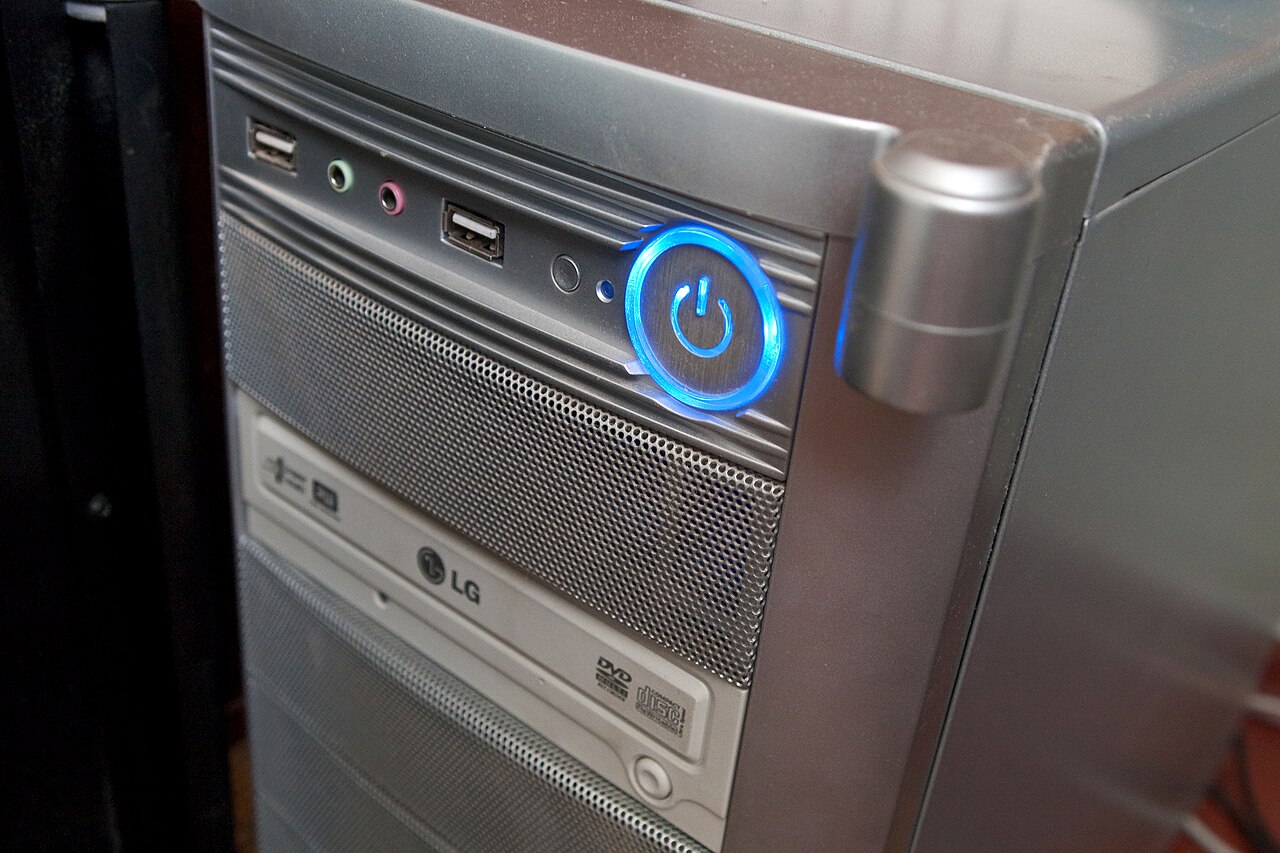
Press the power button once. Short, like a knock on a door.
Wait. Count to ten slowly.
Why wait? The computer is waking up, like a person in the morning.
The power sign: a circle with a line at the top.Photo: Vyacheslav Argenberg, CC BY 4.0
On the computer18 min
Laptop block: Parts and the pointer
Work in pairs. One is the driver and one is the navigator. Swap at the call.
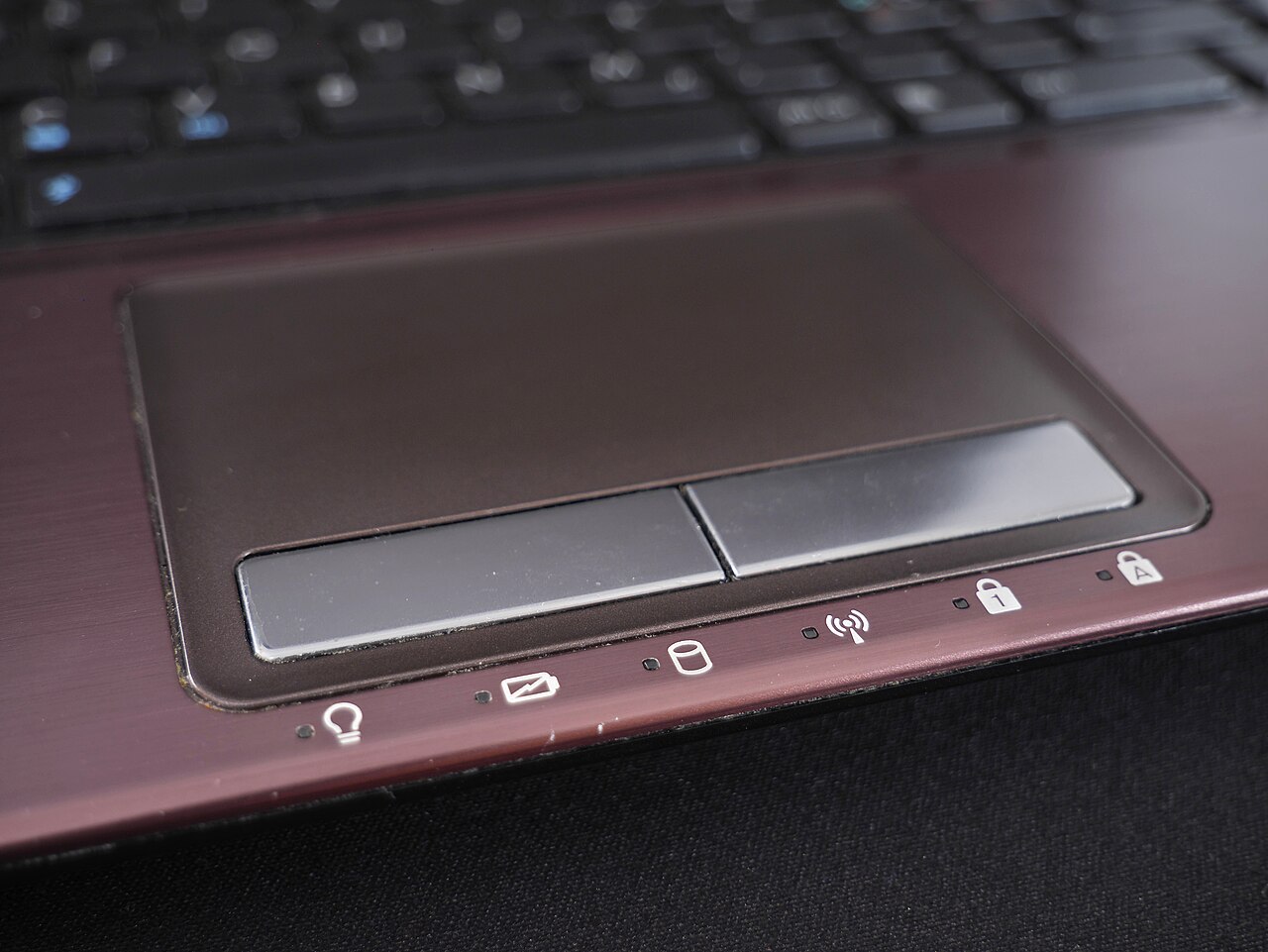
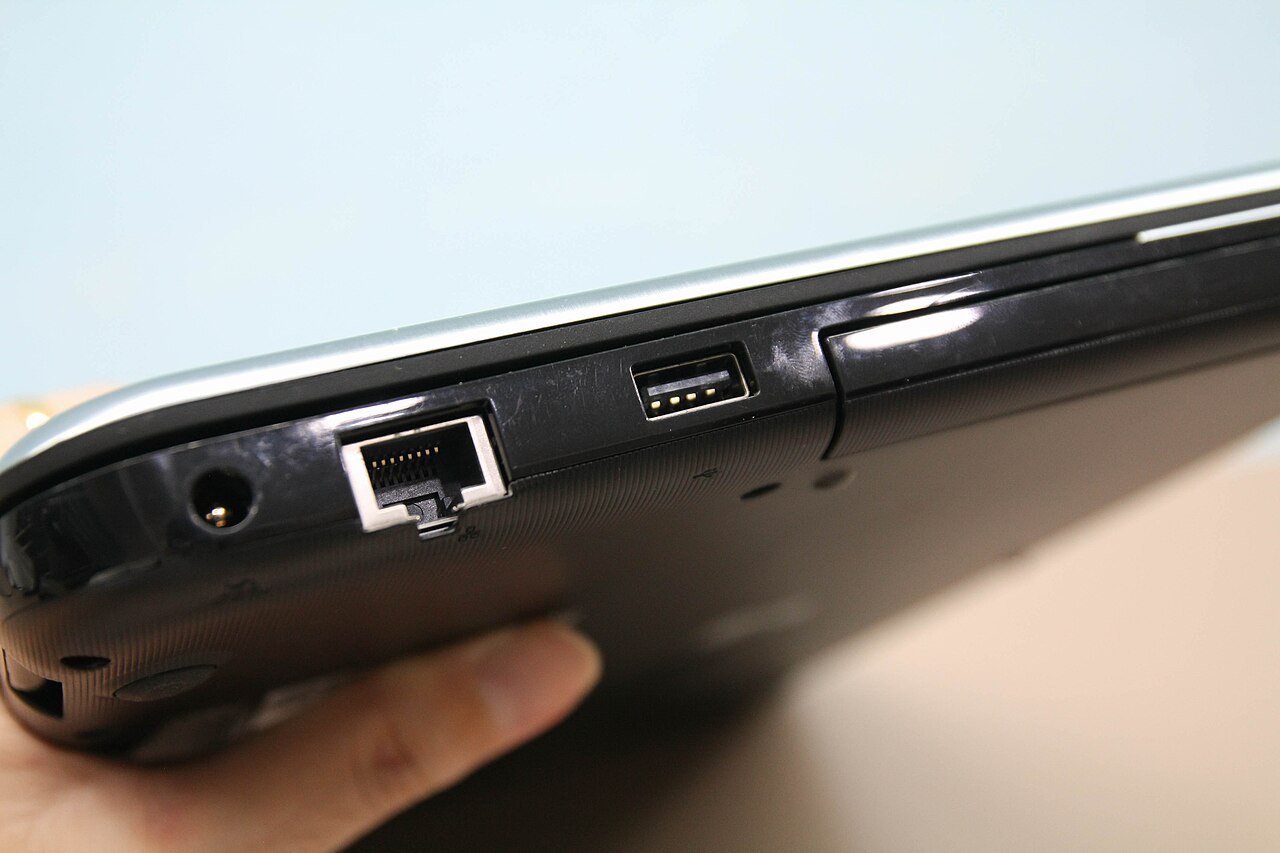
The touchpad. Slide one finger on it.Photo: Santeri Viinamäki, CC BY-SA 4.0A mouse does the same job as the touchpad.Photo: Donald Trung Quoc Don (Chữ Hán: 徵國單), CC BY-SA 4.0Ports on the side of a laptop. Cables plug in here. One of them is for the charger.Photo: liewcf, CC BY-SA 2.0
Round 1. Play Name the parts. Click a name. Then click where it belongs.
Name the parts
1. Click a name. 2. Click where it belongs.
Round 2. Swap. Play the Mouse trainer, 1. Move. Slide one finger on the touchpad. The pointer moves.
Mouse trainer
Move the pointer onto the mango. Do not click.
Learn5 min
Laptop block: Take care, then shut down
Care for the computer.
Clean hands. Wipe them first.
No water, no tea, no food near it.
Carry it with two hands.
Close the lid gently.
Pull the charger by the plug, never the wire.
Like this
Hold the plug. Pull gently.
Not like this
Pull the wire.
Shut down. We do not press the power button to switch off. We tell the computer to shut down.
Windows: Start button, Power sign, Shut down.
Mac: Apple at the top left, Shut Down, Shut Down.
CheckQuestion 1 of 4
How do you pull out a charger?
Challenge5 min
Laptop block: Challenge
Choose one challenge. Try the next one when you are ready.
Bronze
Point to the screen, the keyboard, and the touchpad. Say their names.
Silver
Point to all five parts. Say what each one does.
Gold
Teach your partner how to switch on and shut down. Say the steps. Do not touch the laptop.
Learn15 min
Paper block: Worksheet 1, parts and jobs
Now you work at your table. Today’s table leader leads the table.
Do Worksheet 1 with a pencil. Take your time. Ask your table first. Then ask the teacher.
Worksheet 1: Parts and jobsName:
Task 1. Read the place. Write the name. Use the word box.
Word box: camera, screen, keyboard, touchpad, power button, charging port
Number
Place on the laptop
Name
1
A small eye at the top edge of the screen
2
The big flat face you look at
3
The rows of keys with letters
4
The flat square under the keys
5
The button that wakes the computer
6
A small hole on the side for the charger
Task 2. Match each part to its job. Write the job number.
Part
Job number
Screen
Camera
Keyboard
Touchpad
Power button
Charging port
Jobs:
It shows pictures and words.
It is the small eye.
It wakes the computer up.
Power goes in here.
It moves the pointer.
It puts letters in.
Task 3. Turn the sheet over. Draw a laptop on the back. Write the names of three parts on it.
I wrote three names.
No computer12 min
Paper block: Worksheet 2, good care or bad care
Do Worksheet 2. Cut the cards. Sort them into two piles. Then circle on the sheet.
Worksheet 2: Good care or bad careName:
Cut along the lines. Make two piles. Then circle GOOD or BAD for each number.
Card
What happens
Circle one
1
I wipe my hands before I use the laptop.
GOOD or BAD
2
I put my cup of water next to the laptop.
GOOD or BAD
3
I carry the laptop with two hands.
GOOD or BAD
4
I pull the charger by the wire.
GOOD or BAD
5
I close the lid gently.
GOOD or BAD
6
I bang the keys when it is slow.
GOOD or BAD
7
I keep the laptop in the middle of the table.
GOOD or BAD
8
I eat groundnuts and touch the keys with oily fingers.
GOOD or BAD
Now write your own good care rule.
Wan Bene moment5 min
Paper block: Say it at the table
Go round the table. Each person says two sentences.
“A good care rule is … . I do this because … .”
Speak so that the person farthest from you can hear.
Exit question8 min
Paper block: Exit question
Show with your fingers.
Which is the right way to pull out a charger?
Pull the wire.
Hold the plug.
Shake the wire.
Then say one sentence: “Today I learned … .”
Home mission5 min
Home mission
Paper (everyone). Make a care sign for a computer. Write three rules. Draw a picture for each. Bring it tomorrow.
Phone (only if a family phone is free, and you have asked). Find the screen on the phone. Find the power button and the charging port. Tell someone at home the names. Show them how to pull a charger by the plug.