Teacher block: Apio and the exercise book
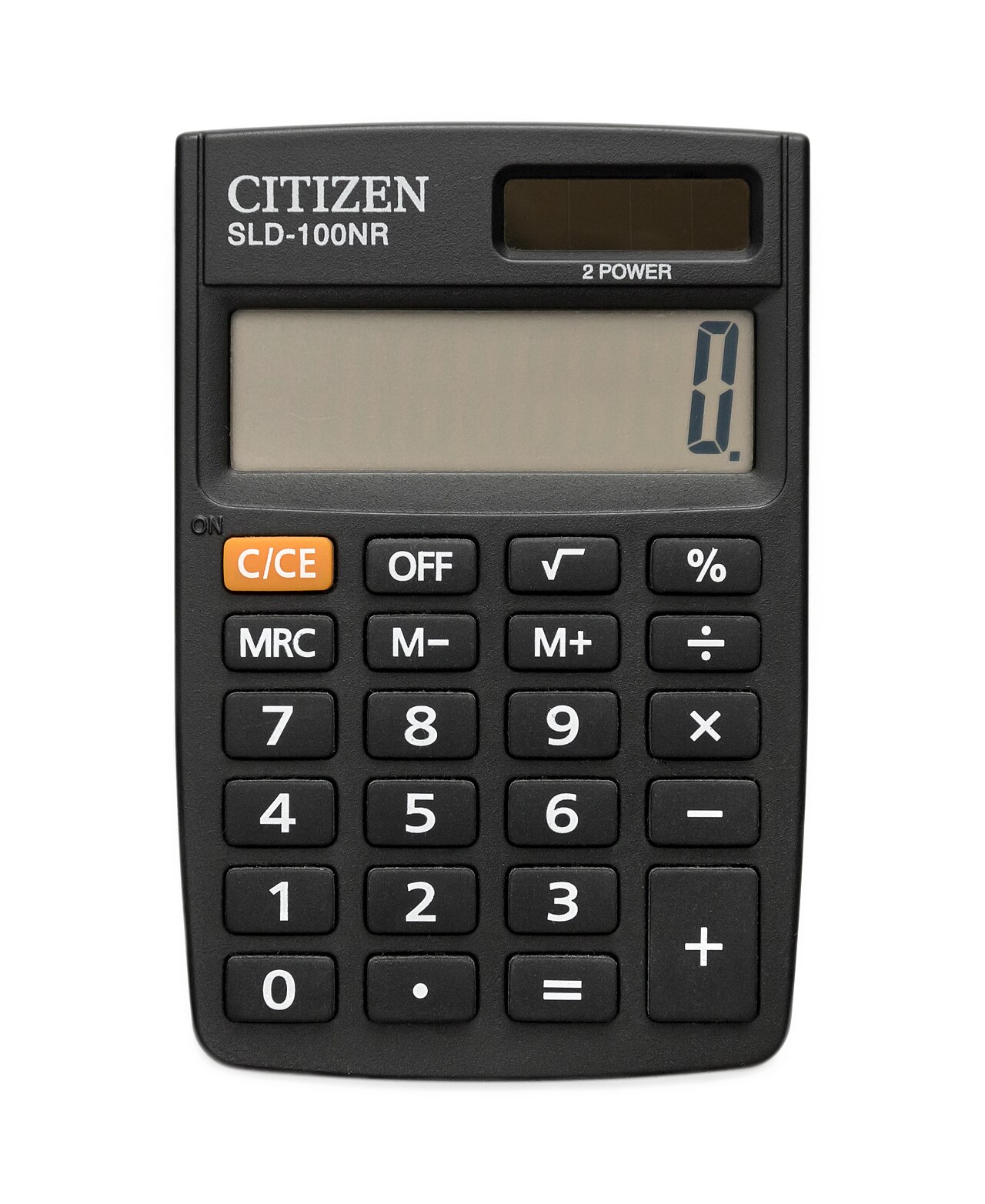
Apio is in her second year. Her aunt sells posho, beans and sugar in Gulu. Every evening Apio copies the day’s sales into an exercise book and adds up the money with a calculator.
On Wednesday her aunt says: “The beans price was wrong on Monday. It was 4,500, not 4,000.” Apio has to find every beans line, work out each total again, and add up the whole week again.
How could the computer do all of that after she fixes one number?
Teacher block: Recall from week 1
Answer on paper, then check with a neighbour.
- What is the difference between Save and Save As?
- Write a path to a file in Year 1, Semester 1, in a course unit folder.
- Why use a Heading style instead of bold text?
- Name two of the five questions you ask about a source.
Teacher block: The blackboard that gave us the spreadsheet
In the late 1970s a business student in the United States, Dan Bricklin, watched his professor work through a financial problem on a blackboard. When the professor found a wrong number, he rubbed out the answers that depended on it and worked them out again, one by one.
Bricklin thought the computer could do that part. With a programmer, Bob Frankston, he built VisiCalc, which came out in 1979. It is usually called the first spreadsheet program for personal computers. Many people say it helped to make small computers useful for ordinary offices.
What job in your own course takes a long time because you must do the same sum again and again?
Teacher block: Cells, rows, columns and addresses
A spreadsheet is a grid. It is stored in a workbook, which can hold several sheets, like pages in an exercise book.
- A column runs up and down. Columns have letters: A, B, C.
- A row runs across. Rows have numbers: 1, 2, 3.
- A cell is one box, where a column and a row meet. Its name is its address: column letter first, then row number. C4 is column C, row 4.
You can type three kinds of thing into a cell: text (words), a number, or a formula (a small instruction that gives an answer).
Good habit for a table of data. Put a short heading for each column in row 1. Start the data in row 2. One fact in each cell. No empty rows in the middle.
Teacher block: The equals sign and your first formulas
A formula always starts with an equals sign. That sign tells the program: “Do not keep this as it is. Work it out.”
| You type | The cell shows |
|---|---|
20 |
20 (a typed number) |
=20*3000 |
60000 (a formula using typed numbers) |
=B2*C2 |
60000 (a formula using cell addresses) |
Arithmetic signs, the same in Excel and Calc:
| Job | Sign | Example | Answer |
|---|---|---|---|
| Add | + |
=5+3 |
8 |
| Subtract | - |
=10-4 |
6 |
| Multiply | * |
=6*7 |
42 |
| Divide | / |
=20/4 |
5 |
Order of working. Brackets first, then multiply and divide, then add and subtract. So =2+3*4 gives 14, and =(2+3)*4 gives 20.
Why use cell addresses and not typed numbers? Because =B2*C2 follows the cells. If you change C2 from 3000 to 3500, the answer changes by itself. The typed version =20*3000 would still say 60000.
Try it on this page. This practice grid works in the browser, with no Excel. D2 already holds =B2*C2. Click D3 and type =B3*C3, then D4. Then change C3 from 4500 to 5000 and watch D3 change. The grid knows only + - * / and SUM, AVERAGE, MIN, MAX and COUNT.
Teacher block: Fill down and relative references
You do not type the same formula twelve times. You write it once and fill down.
When you copy a formula down one row, the cell addresses inside it move down one row too. This is called a relative reference: the formula says “the cell in this same row”, not “that exact cell”.
| Row | The formula in column D |
|---|---|
| 2 | =B2*C2 |
| 3 | =B3*C3 |
| 4 | =B4*C4 |
You wrote only the first. The program wrote the others.
Teacher block: Predict first
Fill this in on paper. Nothing is typed on a laptop yet.
Name:
Use the grid from the board. Item, Quantity, Unit price in columns A, B, C. Rows 2 to 4 are Posho (20, 3000), Beans (15, 4500) and Sugar (10, 5000). Column D holds the formula =B2*C2, filled down.
-
What does D2 show?
-
What does D4 show?
-
Which formula is in D3?
-
The beans price in C3 changes to 5000. What does D3 show now?
-
What does
=(2+3)*4show? -
In one sentence: why is
=B2*C2better than=20*3000?Your teacher will read this answer. Choose who is learning (top of the page) to save this answer.
Teacher block: Quick check
Teacher block: Explain it in 30 seconds
Turn to a partner. In 30 seconds explain, using a shop or a market stall, why a spreadsheet formula is better than a calculator. Your partner repeats it back.
Laptop block: Enter the Shop week data
No teacher is with you. Work from the numbers. Work in pairs, or alone if you are the only Pioneer. Swap driver and navigator after about 5 minutes.
The data below is invented for practice. It is a small shop’s sales in Gulu for one week. No real shop or person is meant. You will use the same data all week, so save it carefully.
| Item | Category | Quantity | Unit price (UGX) | Day |
|---|---|---|---|---|
| Posho | Food | 20 | 3000 | Mon |
| Beans | Food | 15 | 4500 | Mon |
| Sugar | Food | 10 | 5000 | Tue |
| Cooking oil | Food | 6 | 9000 | Tue |
| Soap bar | Household | 12 | 2500 | Wed |
| Airtime card | Services | 30 | 1000 | Wed |
| Exercise book | School | 25 | 1500 | Thu |
| Pen | School | 40 | 500 | Thu |
| Posho | Food | 18 | 3000 | Fri |
| Paraffin | Household | 8 | 4000 | Fri |
| Beans | Food | 10 | 4500 | Sat |
| Exercise book | School | 15 | 1500 | Sat |
- Open Excel, or LibreOffice Calc, which is free. On Windows, use the Start menu. On the Mac, open it from the Dock, or from the Applications folder in Finder. Choose a Blank workbook (Excel) or Spreadsheet (Calc).
- Click cell A1. Type the heading Item. Press Tab to move right. Type Category, Tab, Quantity, Tab, Unit price (UGX), Tab, Day. Press Enter.
- The cursor goes back to column A on the next row. Type the first data row the same way: type, Tab, type, Tab. Press Enter at the end of each row.
- Type all 12 rows. Do not type the commas in the numbers: write 3000, not 3,000.
- Look at the top left. The small box shows the address of the cell you are in. It is called the Name Box. Click E4 and check that it says E4 and that the cell holds Tue.
- Save the workbook. Press Ctrl + S (Command + S on the Mac). Choose your University folder, make a new folder called Spreadsheets, open it, and name the file Shop week. Click Save. Excel makes an .xlsx file. Calc makes an .ods file. Either is fine. If Calc asks about the format, choose to keep the current format.
Partner check: the navigator reads each row of the table aloud while the driver checks the screen. Fix any wrong number by clicking the cell and typing it again.
Laptop block: Your first formulas
Now make the computer do the sums.
- Click F1 and type the heading Total (UGX).
- Click F2. Before you type, say to your partner what F2 should show for Posho. (20 times 3000 is 60000.)
- Type
=C2*D2and press Enter. Check the answer. It should be 60000. - Click F2 again. Look at the formula bar above the grid. It shows the formula, while the cell shows the answer.
- Fill down. Click F2, then drag from F2 down to F13 to select them all, then press Ctrl + D (Command + D on the Mac). You can also drag the small square at the bottom right corner of F2 down to F13.
- Click F3. The formula bar should show
=C3*D3. Click F13 and check it shows=C13*D13. - Check three answers by hand. F3 should be 67500. F5 should be 54000. F13 should be 22500.
- Change one number. Click D3 and type 5000, then press Enter. F3 should become 75000 by itself. Press Ctrl + Z (Command + Z) to undo, and F3 goes back to 67500.
- Save with Ctrl + S (Command + S).
Expected totals for the whole column:
| Row | Item | Day | Total (UGX) |
|---|---|---|---|
| 2 | Posho | Mon | 60000 |
| 3 | Beans | Mon | 67500 |
| 4 | Sugar | Tue | 50000 |
| 5 | Cooking oil | Tue | 54000 |
| 6 | Soap bar | Wed | 30000 |
| 7 | Airtime card | Wed | 30000 |
| 8 | Exercise book | Thu | 37500 |
| 9 | Pen | Thu | 20000 |
| 10 | Posho | Fri | 54000 |
| 11 | Paraffin | Fri | 32000 |
| 12 | Beans | Sat | 45000 |
| 13 | Exercise book | Sat | 22500 |
Name:
-
What does F4 show?
-
What formula is in F9, as the formula bar shows it?
-
What does F12 show?
-
After you changed D3 to 5000, what did F3 show?
Laptop block: Challenges
Bronze
Make the column wider so that every heading can be read. Then add tax, as practice. In G1 type the heading VAT. In G2 type =F2*0.18 for 18 percent tax and fill down. G2 should be 10800.
Silver
In H1 type the heading Total with VAT. In H2 type =F2+G2 and fill down. H2 should be 70800. Then change the price of Posho in D2 to 3500 and check that F2, G2 and H2 all change. Press Ctrl + Z (Command + Z) to put D2 back to 3000, because the rest of the week needs the true data.
Gold
Write two formulas that give the same answer, one using brackets: =F2*(1+0.18) and =F2+F2*0.18. Check that both give 70800 for row 2. Then explain to your partner why the brackets matter (what does =F2*1+0.18 give?), and what would go wrong if you replaced the 0.18 with a typed 18.
When you finish any challenge: select the cells in columns G and H that you used and press Delete (in Calc on the Mac a Delete Contents box may open: click OK), then save. Tomorrow column G is used for something new.
Laptop block: Exit question
Write your answer on paper, then say one sentence aloud to your partner.
Apio changes the price of sugar in D4. What happens to F4, and why?
Laptop block: Home mission
Paper (no device). Write a small price list of five things you buy often, with quantity and unit price. On paper, draw a grid, write the formula for the total of the first row, and work out all five totals by hand.
Phone (if you have one free). Look at a real receipt, a price list or a mobile money message. Write down which numbers are typed in and which are worked out from others. Bring your notes tomorrow.
Laptop block: Prepare tomorrow's mentoring
Tomorrow the Explorers do Words, spaces, and capital letters. Today they learned to sit well and found the home keys. Tomorrow they learn four keys: the space bar, Enter, Backspace and Shift. Then they open the text program and type “ask dad”, their first name and last name with capital letters, and Shift with 1. Then they play “4. My name” in the Key finder.
Practise opening the text program on both laptops tonight or before class. Lenovo: click Start, type Notepad, press Enter. MacBook: hold Command and tap the space bar, type TextEdit, press Return, and click New Document if a file window shows.
Write on a sheet:
- The first thing you will say. For example: “Show me how you sit. Feet flat, back straight.”
- Two words you will use in plain English. For example “space bar” and “capital letter”.
- The question you will ask instead of taking the keyboard: “Which finger hits the space bar? How will you check?”
Practise with your partner. One of you is the Explorer, the other is the mentor. The mentor sits with hands behind the back.